GuidedRole
No. Save adds the record to the list as a draft. To make it live, open it from the list and select Publish.
On screen
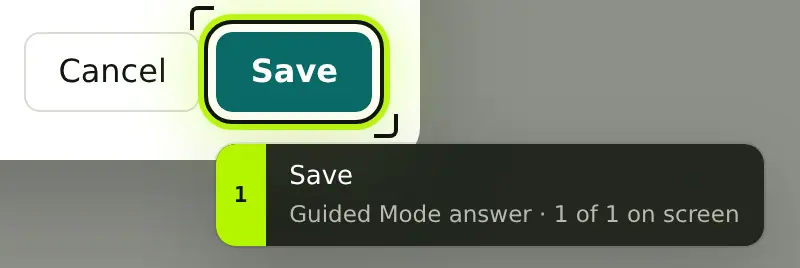
- 1SaveShowing
Sources
Creating a recordDraft and Published records
Guided Mode is an AI assistant in the GuidedRole side panel, beside every lesson. People ask in their own words while they practise. The answer comes from your course and the step they are on, and it can point at the control it means on the page.
Sign up free · Request Enterprise at set-up · FasterApps applies it
Will this go live as soon as I save it?
No. Save adds the record to the list as a draft. To make it live, open it from the list and select Publish.
A sample Guided Mode question and answer during practice on a sample test site.
Guided Mode works in the side panel, on your application’s test site. Nothing is installed in your application, and the learner does every step.
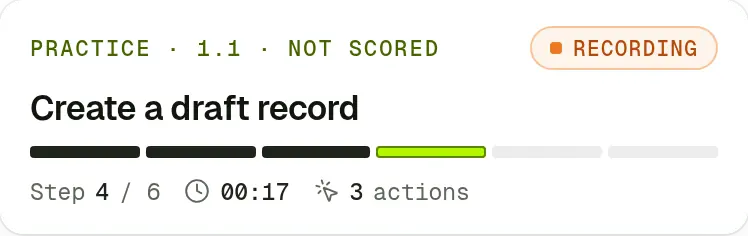
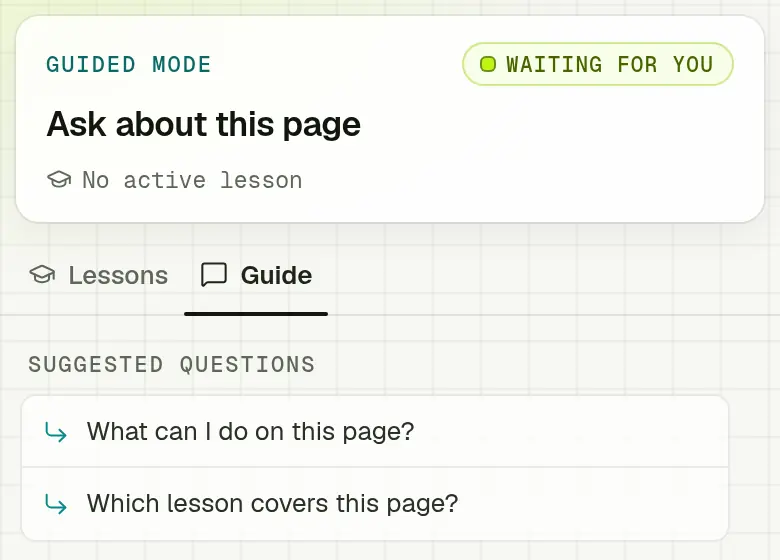
The question box sits at the foot of the side panel on every lesson tab, under a line that names the step the question is about. Suggested questions help with the first one. Outside a lesson, people can ask about the page of your test site they are on.
Guided Mode reads your course’s knowledge articles, the lesson and step in progress and a summary of the page that leaves out what is typed in it. It is told to answer only from those, to keep answers short and to say when the course does not confirm something.
Never sent: what is typed in the fields, keystrokes, screenshots or the page title.
When an answer refers to a control on the page, it lists it under On screen. The learner selects Show, and GuidedRole frames the control on your test site, with a callout that names the control and marks it as part of a Guided Mode answer.
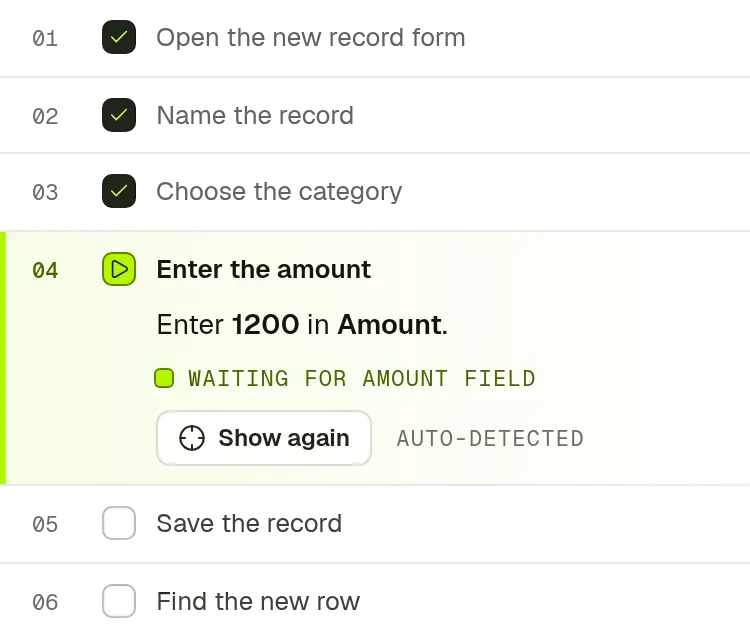
GuidedRole points; the learner does every step. Most steps complete when the page shows the result, and the lesson carries on from there.
Sample data from a demo workspace. The question and answer are examples.
Trained people help a business grow. Untrained people cost it, in mistakes, in rework and in the time of the colleagues they interrupt. Guided Mode keeps people learning at the moment they would otherwise wait, interrupt someone or guess.
A question that would wait for a trainer, or pull a colleague away from their own work, can get an answer from your course while the task is still on screen, so the learner can finish the step and keep practising.
Outside a lesson, people can ask about any page of your test site, such as what it lets them do or which lesson covers it. Marketers get answers from the same course as everyone else.
Answers draw on the course release published in your workspace. When FasterApps updates your course for a release and an admin publishes it, questions about what changed are answered from the new lessons and articles.
The admin overview counts the questions asked about each lesson or topic over the last 30 days. The lessons that draw the most show where the course could explain more.
25questions in 30 days
Individual transcripts are not shown to administrators.
Sample data from a demo workspace. Staff see question counts, never the conversations.
Guided Mode is a tutor, never a grader. The same rules apply to every learner who uses it.
Guided Mode does not answer while an assessment is in progress, and no AI model is asked. Results show what each person can do alone.
Before their first question, learners read that an AI model answers, where it is processed, what is sent and that answers can be wrong. Nothing is sent until they continue.
Within your workspace, only the learner reads their conversations. Trainers and administrators see how many questions each lesson or topic draws, never the text or who asked.
What people type in your test site’s fields, their keystrokes and screenshots never leave the browser. Email addresses and long numbers are removed from questions.
Conversations are kept for 30 days by default, and admins can change the period. Learners can view and export their own.
An owner or admin can turn Guided Mode off for the whole workspace in Settings, and back on while the plan includes it.
Every plan includes guided lessons, practice, role paths, assessments and tracking. Enterprise adds Guided Mode, with 100 licences, 2 domains and 50 modules. Billed yearly with every licence in use, it costs $1.99 per licence a month, the lowest of the paid plans.
No Guided Mode
$4.90per licence a month
billed yearly, with all 10 licences in use
$49 per month, billed yearly ($588 a year), or $59 billed monthly, $5.90 per licence
10 licences · 1 domain · 10 modules
No Guided Mode
$2.48per licence a month
billed yearly, with all 40 licences in use
$99 per month, billed yearly ($1,188 a year), or $109 billed monthly, $2.73 per licence
40 licences · 1 domain · 20 modules
Guided Mode: answers from your course and pointers on the page
$1.99per licence a month
billed yearly, with all 100 licences in use
$199 per month, billed yearly ($2,388 a year), or $209 billed monthly, $2.09 per licence
100 licences · 2 domains · 50 modules
Prices are in US dollars, per workspace. The price per licence divides a plan’s price by its licences, so it holds when every licence is in use.
For $100 a month more than Business, billed yearly, Enterprise adds Guided Mode, 60 more licences, 1 more email domain and 30 more published modules.
The free trial does not include Guided Mode. There is no online checkout yet: you ask, and the FasterApps team sets the plan up.
Sign up with your work email. Every workspace starts on the 14-day free trial, without Guided Mode.
An owner or admin requests Enterprise, billed monthly or yearly, in “Choose a plan”, step 4 of the set-up, or later in Plan & licences.
The FasterApps team applies the plan and invoices you. Guided Mode then starts for your learners, and admins can turn it off.
Already have a workspace? An owner or admin requests Enterprise in Plan & licences.
Kimi, a model by Moonshot AI, processed in Singapore. Learners are told this in a notice before their first question, and GuidedRole calls the model from its servers, never from the learner’s browser.
The question, earlier messages of the same conversation, the lesson and step the learner is on, up to five of your course’s knowledge articles and a summary of the page: its address with names and ids removed, and the headings, controls, field labels, open dialog and on-screen messages your course names, with whether each field is filled, required or shows an error.
It never receives what is typed in fields, keystrokes, screenshots, the page title or the learner’s name and email address.
Within your workspace, only the learner. Trainers and administrators see how many questions each lesson or topic draws over the last 30 days, never the text or who asked. Conversations are kept for 30 days by default, and learners can view and export their own.
No. While an assessment is in progress, a question is refused without asking the AI model, and pointers are not shown. Assessment results show what each person can do alone, and they are worked out by fixed rules: no AI model grades anyone.
Yes. Guided Mode is told to answer only from your course and to say when the course does not confirm something, but AI answers can be wrong. Learners are asked to check them against the lesson, and they can mark each answer Helpful or Not helpful.
In the GuidedRole side panel in Chrome, on your application’s test site: during a lesson, and on the site’s pages outside one. It does not answer on other sites.
Yes. An owner or admin can turn Guided Mode off for the whole workspace in Settings, and back on while the plan includes it. It is always off during assessments, whatever the setting.
No. The 14-day trial includes lessons, practice, assessments and tracking, without Guided Mode. To get Guided Mode, ask for the Enterprise plan when you set up your workspace or later in Plan & licences, and the FasterApps team applies it.
Learners can no longer ask questions. Nothing is deleted: earlier conversations stay readable and exportable until they expire, and the topic counts stay on the admin overview.
Start with the free trial and request Enterprise when you set up your workspace. Guided Mode starts once FasterApps applies the plan.
14-day free trial · No payment details · Works in Chrome