Skip to content
How it works

From the first guided step to proven skill.

GuidedRole trains people inside your own web application. It leads them through guided steps on the real screen, lets them practise on your test site, checks what they can do with scored assessments, tracks progress for every role and keeps every course current as your product changes.

Chrome extension · Nothing installed in your application · 14-day free trial

01Learn

Learn in guided steps on the real screen.

Lessons run in your own application, on its test site. GuidedRole frames the control to use next, and a callout beside it says what to do and, where it matters, why.

  • Every step has an instruction and a highlighted target, and the reason where it matters.
  • Hints open on request. Known mistakes are recognised and come with a correction.
  • The learner does the work. GuidedRole points, and never clicks or types on the site.
  • Nothing is installed in your application. The Chrome extension does the guiding.
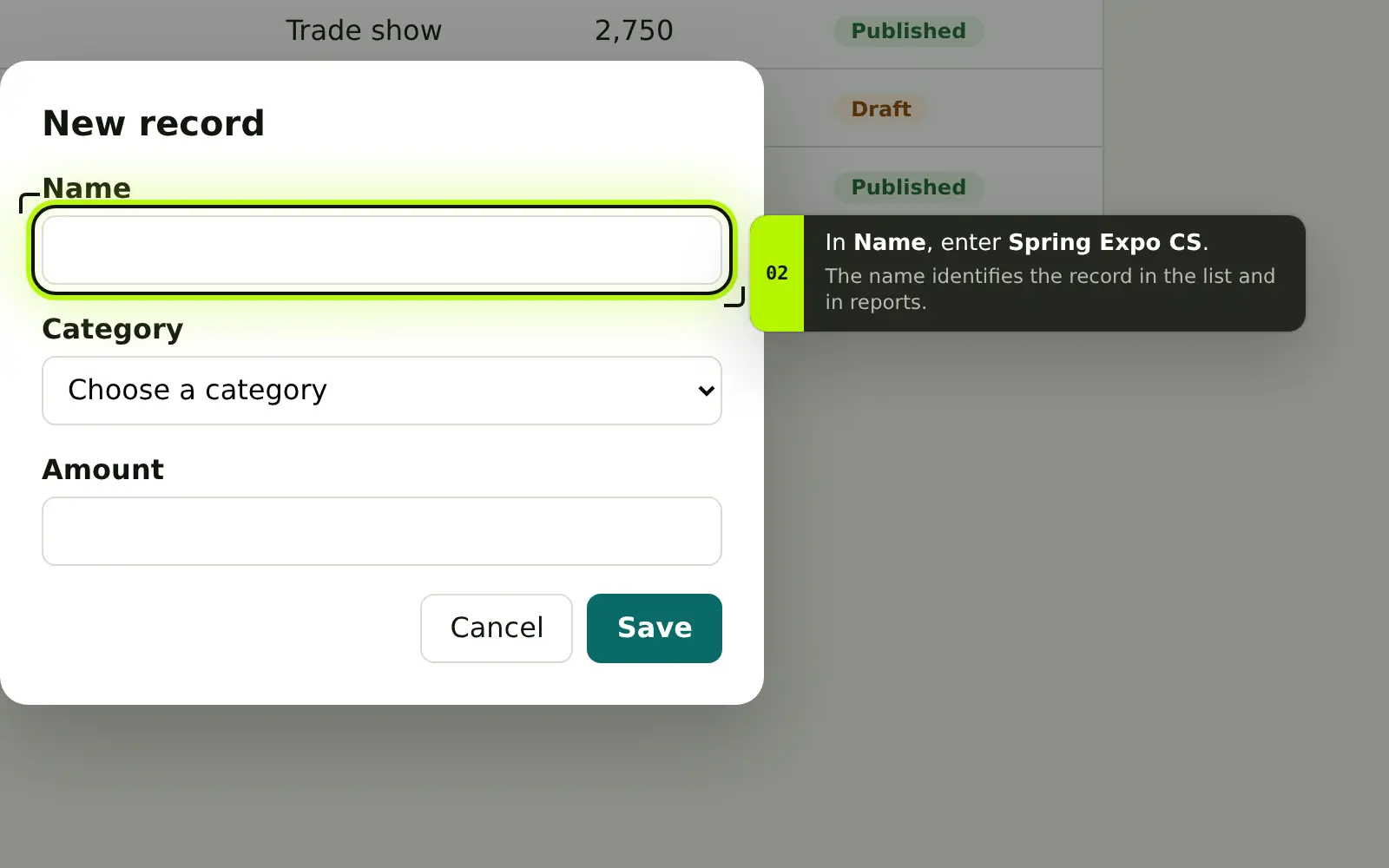
A test site during practice. GuidedRole frames the Name field of the New record form, and a callout beside it says what to enter and why.
Lesson 1.1 · Step 2 of 6Guiding
Instruction
In Name, enter Spring Expo CS.
Why
The name identifies the record in the list and in reports.
Target
The Name field, framed on the page.
Done when
The field holds the name. The check runs in the browser; only its outcome is kept.
Hint
Type the name exactly, including your initials.
Mistake
In step 3, Conference chosen as the category. GuidedRole says: This record is for a trade show, not a conference.
02Practise

Practise safely on your test site.

Guided practice happens on your application’s test site, away from live customers. Most steps complete when the page shows the result, such as the opened form or the saved record.

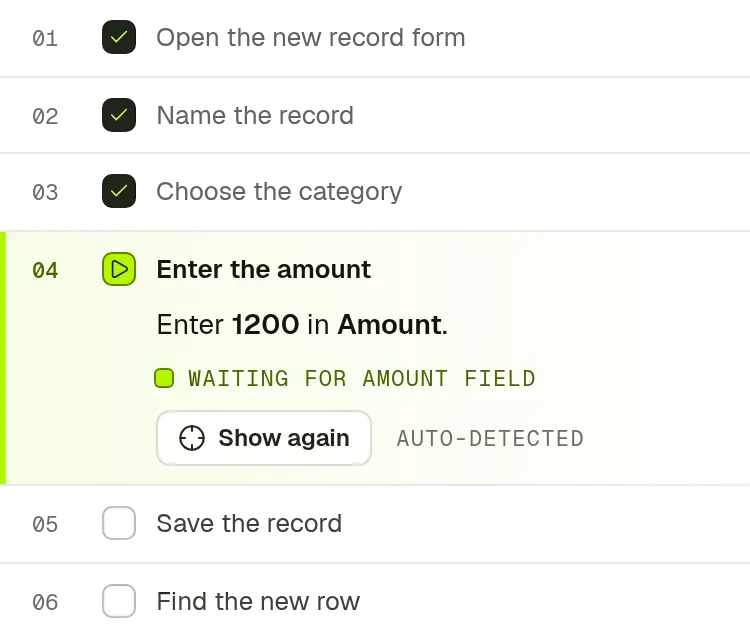
  • The side panel lists the steps and says what GuidedRole is waiting for.
  • A Recording indicator shows while a lesson records, and a lesson can be stopped at any time.
  • Before the first lesson, every learner is shown What GuidedRole records and continues with I understand.
  • A lesson left halfway can be resumed later.
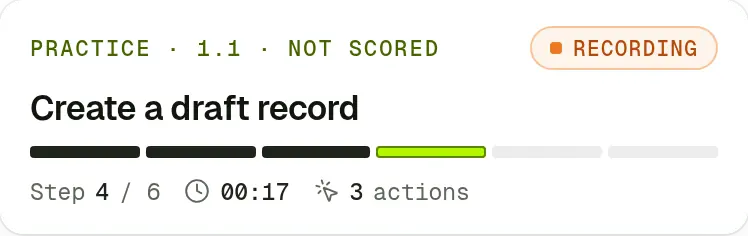
The practice card from the side panel: lesson 1.1, Create a draft record, not scored, recording, step 4 of 6, with the time and the number of actions.The side panel's step list: three steps done, and step 4, Enter the amount, waiting for the Amount field.
The side panel during practice on a sample test site.
Before the first lessonSide panel

What GuidedRole records

When it records: only while a lesson or an assessment is running in the GuidedRole side panel, and when you ask Guided Mode a question. A Recording indicator shows whenever a lesson or an assessment is recording. You can stop a lesson at any time.

What it is used for: guiding your training, scoring assessments and improving lessons. It is not used to monitor your productivity.

An excerpt. The full notice also lists what is recorded, what is never recorded, who sees it and how long it is kept. Learners continue with I understand.

03Assess

Assess what people can do.

Every lesson has an assessment. Its brief describes only the outcome the customer needs. There are no hints, no highlights and no Guided Mode.

Criteria carry weights that add up to 100, and some are critical. Some results are observed on the page while the learner works. Others are checked again after submission: the extension reopens the saved page in a background tab to confirm the work was saved or is public. Results are meant for training decisions.

  • The default score is accuracy 70, time 20 and actions 10.
  • With the default scoring, a pass needs 80 points and every critical outcome, and time and action points count only when every critical outcome is met.
  • Admins can change each assessment’s benchmarks and scoring for the workspace, without a new course release.
  • If the site itself fails, the attempt ends as Incomplete – technical and is not counted against the learner.

Assessment · 1.2Not started

Create a customer record

Reference 2:3021 actionsPass mark 80

This is an assessment. GuidedRole checks the results you create, times the task and counts the actions you use. Page loads beyond 1.5 seconds are left out of the time; there is no pause. Expected time: 2:30. Guided Mode is off until you finish. Technical problems never count against you.

Brief

Bluewater Logistics signed today. Create its customer record so the account team can find it and follow up. Keep it as a draft until the contract is countersigned, and finish on the record’s page.

Required details

Record name
Bluewater Logistics
Category
Wholesale
Owner
Priya Shah

How you are marked

Accuracy70Time20Actions10

Pass with 80 or more and both critical outcomes met. Time and actions earn points only when every critical outcome is met.

  • CriticalDraft record named Bluewater Logistics
  • CriticalOwner set to Priya Shah

3 more outcomes count towards accuracy. 3 outcomes are observed on the page; 2 are re-checked by reopening the record after you submit.

Rules

  1. No highlights, hints or Guided Mode answers.
  2. Any training-site account may be used.
  3. GuidedRole observes only the tab where you start the assessment.
  4. Closing the tab or the panel for more than 30 seconds interrupts the attempt.

One assessment in the side panel

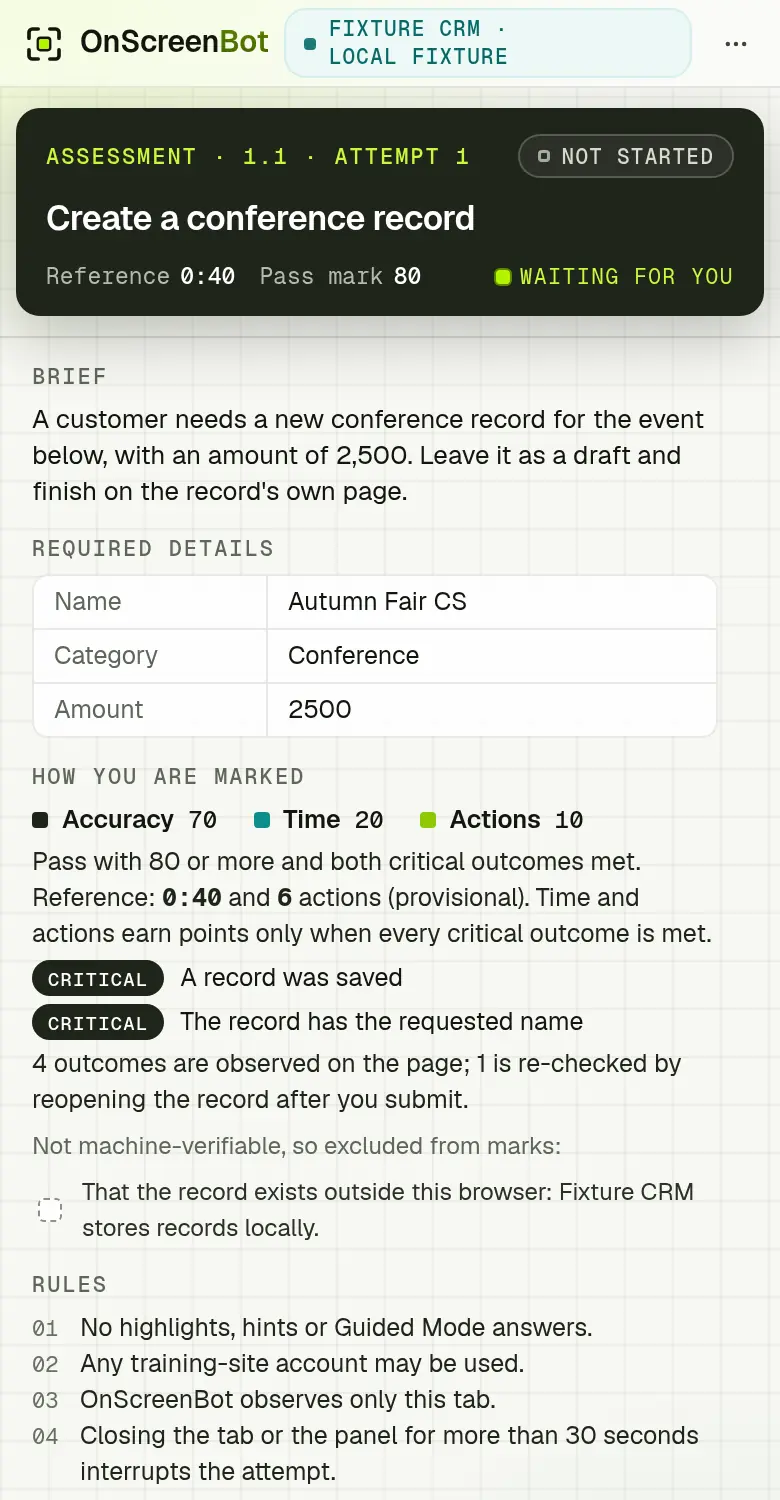
Screenshots of the side panel during one attempt on a sample test site, from the brief to the result.

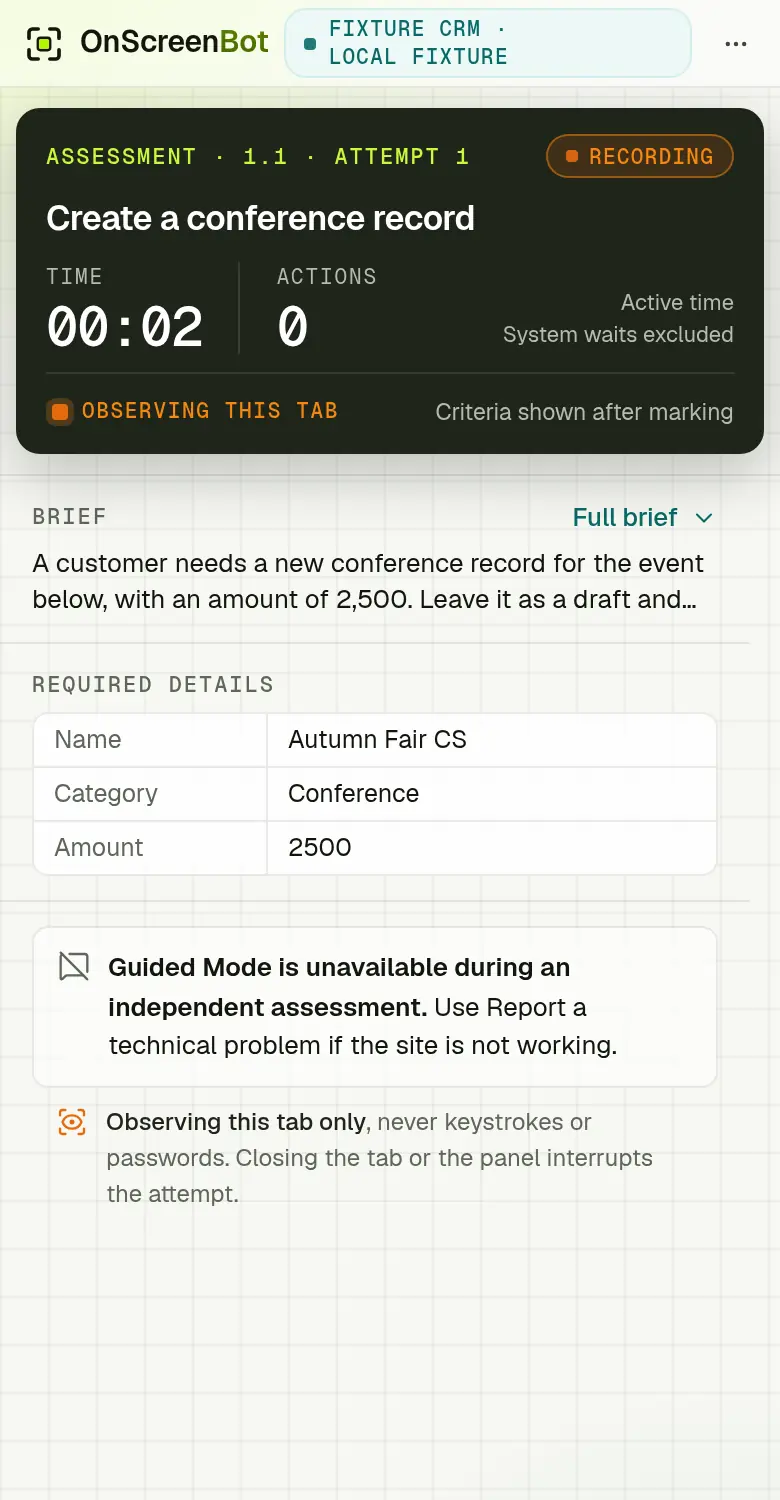
  1. The assessment brief in the side panel: the outcome to achieve, the required details, how the attempt is marked, the critical outcomes and the rules, with no highlights, hints or Guided Mode.
    BeforeThe briefThe outcome to reach, the details to use, how the attempt is marked and the rules.
  2. An assessment in progress in the side panel: the time and action count, Observing this tab, and a notice that Guided Mode is unavailable during an independent assessment.
    DuringObserved, not guidedTime and actions are counted. There are no highlights, no hints and no Guided Mode.
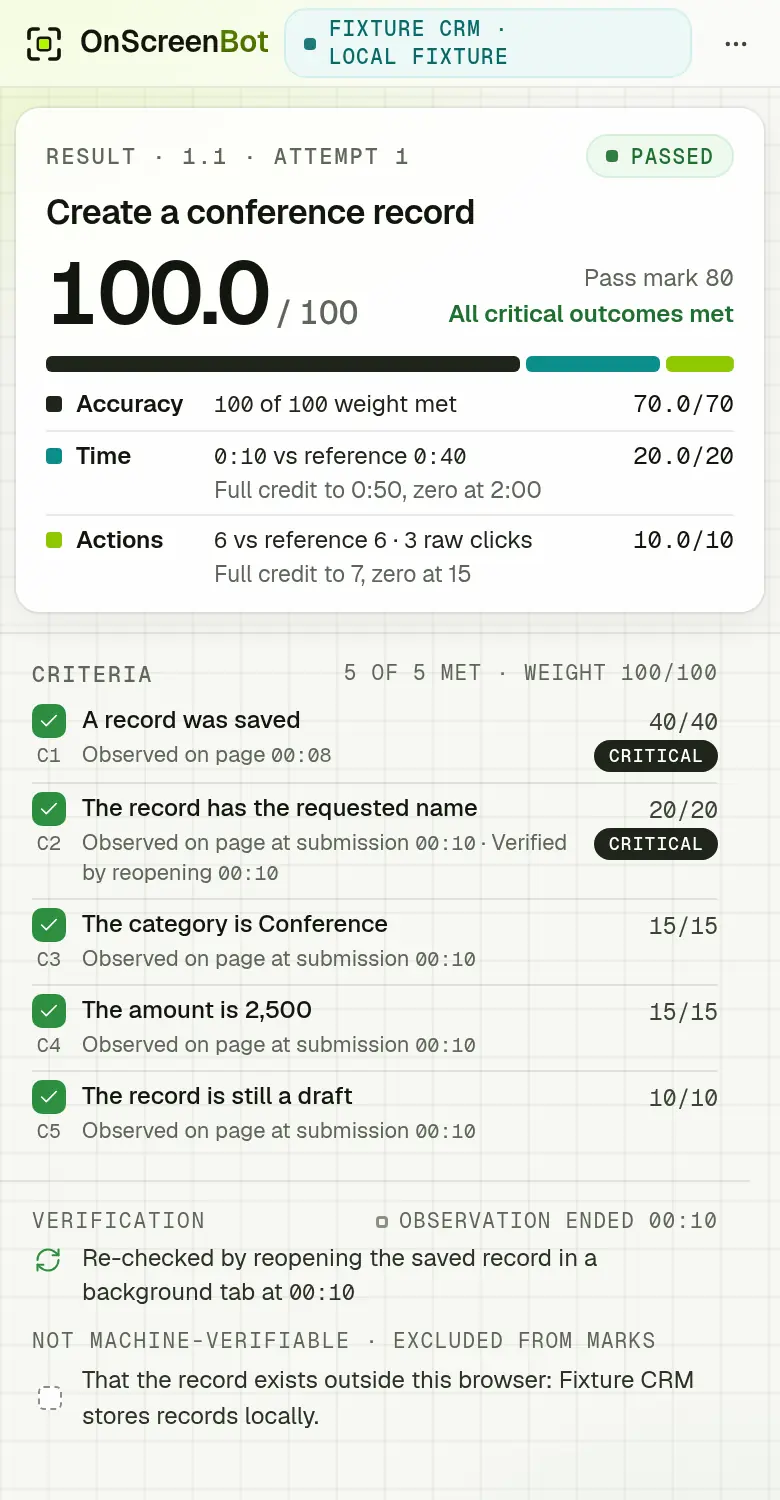
  3. The result in the side panel: passed with 100 out of 100, the accuracy, time and action points with their rules, each criterion with its evidence, and the record re-checked by reopening it.
    AfterThe resultPoints for accuracy, time and actions, and the evidence for every criterion.

Four attempts at the same assessment

Each attempt is scored by the engine the server grades attempts with. Choose one to see its criteria, its evidence and how the points add up.

Show an attempt
Passed

Every outcome met, a little slower and busier than the reference. Total 97.1 meets the pass mark of 80.

Criteria5 of 5 met · 100 / 100 weight
  • C1
    Draft record named Bluewater Logistics (Met)Critical
    Observed on page03:42Verified by reopening03:45
    30 / 30
  • C2
    Category set to Wholesale (Met)
    Observed on page03:42
    20 / 20
  • C3
    Owner set to Priya Shah (Met)Critical
    Observed on page03:42
    20 / 20
  • C4
    Kept as a draft, not published (Met)
    Observed on page03:42Verified by reopening03:45
    20 / 20
  • C5
    Finished on the record’s page (Met)
    Observed on page03:42
    10 / 10
Observed on page during the attemptVerified by reopening rechecked after submission
ScoreDefault scoring · 70 · 20 · 10
Total
97.1 / 100
Pass conditions
  • Total at or above 80 (met)97.1
  • All critical criteria met (met)2 / 2
  • No technical interruption (met)None
Accuracy
100 of 100 criteria weight met
70 × the share of verifiable criteria weight met.
70.0 / 70
Time
3:42 active vs 2:30 reference
Full credit up to 3:08 (1.25×), falling linearly to zero at 7:30 (3×).
200REF 2:303:42 → 17.40:003:087:30
17.4 / 20
Actions
26 actions vs 21 reference
Full credit up to 25 (1.2×), falling linearly to zero at 53 (2.5×).
9.7 / 10
Time and action credit apply only when every critical criterion is met. The total uses unrounded components: 70.00 + 17.37 + 9.71 = 97.08.
Not passed

Fast, but the owner was never set. Speed earns nothing without the critical outcomes. Critical outcome missed: Owner set to Priya Shah. Total 56 is below the pass mark of 80.

Criteria4 of 5 met · 80 / 100 weight
  • C1
    Draft record named Bluewater Logistics (Met)Critical
    Observed on page02:20Verified by reopening02:23
    30 / 30
  • C2
    Category set to Wholesale (Met)
    Observed on page02:20
    20 / 20
  • C3
    Owner set to Priya Shah (Missed)CriticalMissed
    Not observed on page at submission (2:20).
    0 / 20
  • C4
    Kept as a draft, not published (Met)
    Observed on page02:20Verified by reopening02:23
    20 / 20
  • C5
    Finished on the record’s page (Met)
    Observed on page02:20
    10 / 10
Observed on page during the attemptVerified by reopening rechecked after submission
ScoreDefault scoring · 70 · 20 · 10
Total
56.0 / 100
Pass conditions
  • Total at or above 80 (not met)56.0
  • All critical criteria met (not met)1 / 2
  • No technical interruption (met)None
Accuracy
80 of 100 criteria weight met · C3 missed (20)
70 × the share of verifiable criteria weight met.
56.0 / 70
Time
2:20 active vs 2:30 reference
No efficiency credit because a critical outcome was not achieved.
200REF 2:302:20 → 0.00:003:087:30
0.0 / 20
Actions
19 actions vs 21 reference
No efficiency credit because a critical outcome was not achieved.
0.0 / 10
Time and action credit apply only when every critical criterion is met. The total uses unrounded components: 56.00 + 0.00 + 0.00 = 56.00.
Not passed

Both critical outcomes met, but two others missed and the work was slow. Total 68.7 is below the pass mark of 80.

Criteria3 of 5 met · 70 / 100 weight
  • C1
    Draft record named Bluewater Logistics (Met)Critical
    Observed on page05:00Verified by reopening05:03
    30 / 30
  • C2
    Category set to Wholesale (Missed)Missed
    Not observed on page at submission (5:00).
    0 / 20
  • C3
    Owner set to Priya Shah (Met)Critical
    Observed on page05:00
    20 / 20
  • C4
    Kept as a draft, not published (Met)
    Observed on page05:00Verified by reopening05:03
    20 / 20
  • C5
    Finished on the record’s page (Missed)Missed
    Not observed on page at submission (5:00).
    0 / 10
Observed on page during the attemptVerified by reopening rechecked after submission
ScoreDefault scoring · 70 · 20 · 10
Total
68.7 / 100
Pass conditions
  • Total at or above 80 (not met)68.7
  • All critical criteria met (met)2 / 2
  • No technical interruption (met)None
Accuracy
70 of 100 criteria weight met · C2 missed (20), C5 missed (10)
70 × the share of verifiable criteria weight met.
49.0 / 70
Time
5:00 active vs 2:30 reference
Full credit up to 3:08 (1.25×), falling linearly to zero at 7:30 (3×).
200REF 2:305:00 → 11.40:003:087:30
11.4 / 20
Actions
30 actions vs 21 reference
Full credit up to 25 (1.2×), falling linearly to zero at 53 (2.5×).
8.2 / 10
Time and action credit apply only when every critical criterion is met. The total uses unrounded components: 49.00 + 11.43 + 8.24 = 68.67.
Incomplete – technical

The test site showed an error page while saving. The attempt stops and is not graded. It is not counted against the learner, and retakes are always available.

The learner’s side panelAssessment 1.2
Paused · Technical problem · 01:36
GuidedRole detected a problem with the training site or the connection. This attempt is stopped and will not count against you. Restart it when the site works.
Signal
Error page: “Something went wrong”
Graded
No. The clock stopped at the problem.
Counted
Not against the learner
Technical issues · Admin spaceOpen

Tomás RiveraToday 10:41

1.2 · Attempt 1

Classification
System problemerror-page · Something went wrong
Status
Awaiting review · not counted

Staff see the signal, the moment it happened and the lesson, and close the issue as resolved or as a known limitation, with a note.

04Track

Track progress for every role and step in early.

The admin overview shows the workspace’s totals and the people who need attention. Every learner has a status, and every attempt keeps its score breakdown.

  • Statuses: on track, overdue, needs attention, not started and completed.
  • Results list every attempt with its accuracy, time and actions.
  • Owners and admins can open a recent attempt’s step-by-step timeline when they coach someone. Each opening is recorded in the audit log.
  • Trainers see learners, results and technical issues, and can close technical issues. They do not open timelines or change paths, releases or settings.
Learners · Support essentials5 of 24
  • Amara Osei9 / 17 lessons passedOn trackDue 31 Oct
  • Sara Lindqvist3 / 17 lessons passedOverdueDue 10 Oct
  • Jonah Mbeki6 / 17 lessons passedNeeds attentionRepeated attempts without a pass
  • Rafael Costa0 / 17 lessons passedNot startedAssigned 8 Oct
  • Lena Hoffmann17 / 17 lessons passedCompletedPath completed
Evidence timeline · 1.2Attempt 2

System waits excluded from timeNo keystrokes or field contents

  1. 00:00Opened /recordsNavigate · Entered in the address bar
  2. 00:07Selected New recordActivate · button
  3. 00:24Filled Record nameCommit · the value is never recorded
  4. 00:41Filled CategoryCommit
  5. 01:02Filled OwnerCommit
  6. 01:15Selected Save draftActivate · button
  7. 01:16Message shownMessage · Draft saved
  8. 03:42Criterion metCheck · Observed on page at submission (3:42).C3

After submission

  1. 03:45Criterion metCheck · Verified by reopening /records/:x.C1

Viewing step-by-step activity is logged.

Audit logHannah Ortiz · 17 Oct, 10:22 · Viewed the step-by-step timeline of attempt 2 by Amara Osei at Create a customer record.

Sample data from a demo workspace.

Learners2413 in progress · 2 not started
Completed938% of learners
First-attempt pass71%Graded first attempts
Median score86.2Graded attempts · pass mark 80
Licences26/ 10074 free · Enterprise

Admin overview · key figures of a demo workspace

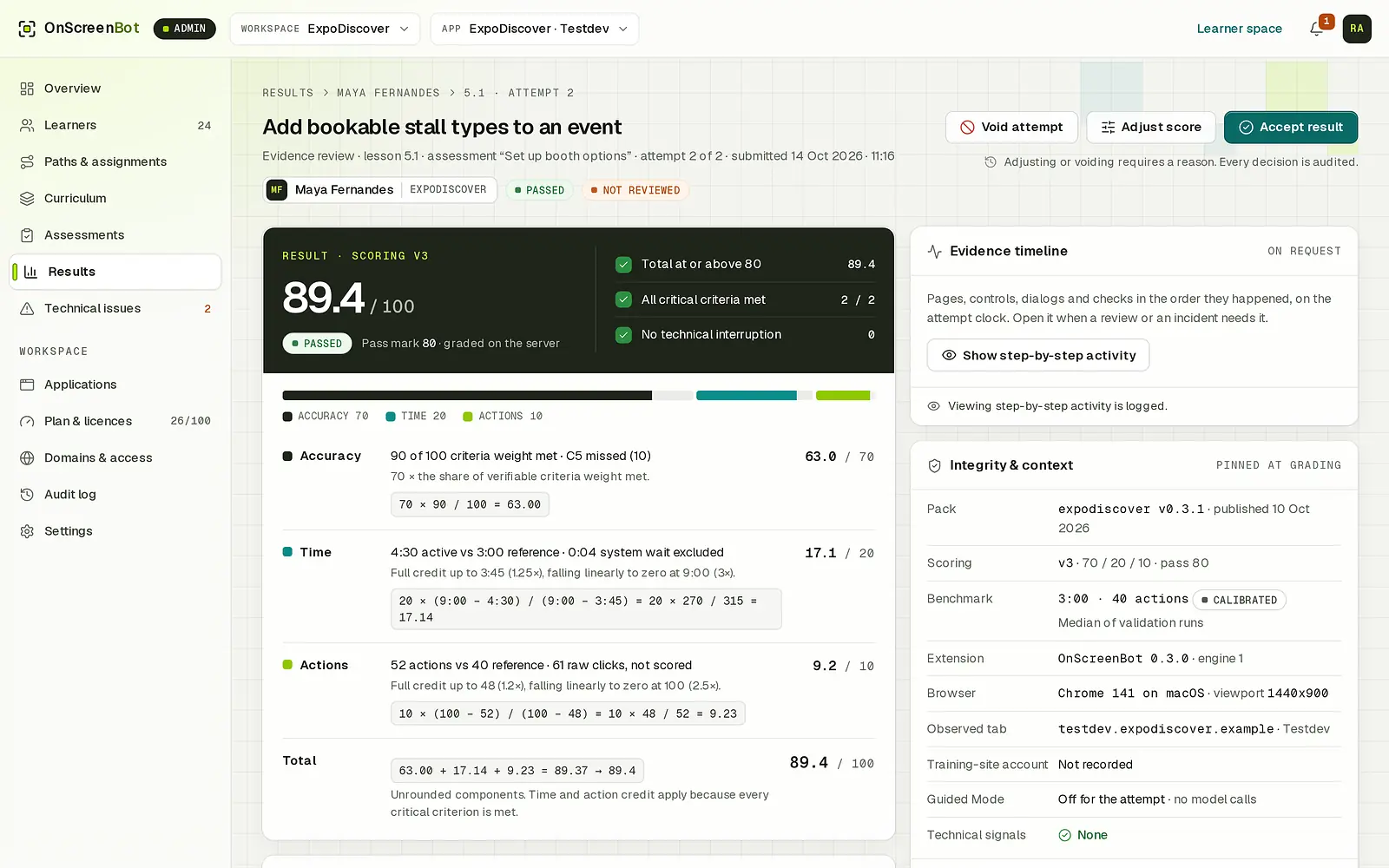
One result in the admin space: 89.4 out of 100, passed, with the accuracy, time and action points worked out step by step, the evidence timeline on request and the context of the attempt.
One result in the admin space of a demo workspace: the score worked out step by step. Names and figures are sample data.
05Keep current

Keep every course current.

Courses are versioned with your product. Each release is imported as a draft and published by a workspace admin. Publishing retires the previous release, and every attempt keeps the release it was taken on.

  • Paths give each training role, such as support or sales, its required and optional lessons and a due date.
  • A path with a training role is assigned automatically to the people who hold it, when it is saved and when a release is published.
  • Content health shows each lesson’s pass rate and median time over the last 30 days against the reference, and flags targets found by a fallback or ambiguous or not found.
How release readiness works
Course releasesCustomer portal
  1. v0.5.0Draft
    Made available by FasterApps · 16 OctValidated on the test site · no warnings · Not assigned until published
  2. v0.4.0Published
    Published by Hannah Ortiz · 30 SepValidated on the test site · no warnings · Used by 24 learners
  3. v0.3.1Retired
    Published 12 Sep · retired 30 Sep by Hannah OrtizValidated on the test site · Results are kept
Content healthv0.4.0
  • 3.1 Create an invoiceHealthy

    30-day pass rate 88%Median 2:41 / reference 2:30

  • 3.2 Send a payment reminderNeeds review

    30-day pass rate 38%Median 4:05 / reference 2:45

    send-reminderNot found 5 / 9 on v0.4.0

    The Send button moved into the Actions menu in the last app release. The fix is in the draft release v0.5.0.

  • 3.3 Refund an orderHealthy

    30-day pass rate 92%Median 1:52 / reference 2:00

FoundFound by a fallbackAmbiguous or not found

Sample data from a demo workspace.

How a release is made

FasterApps builds and updates your courses from your application’s source code. There is no point-and-click editor or recorder in this version.

  1. FasterAppsRead your source codeFrom your application’s repository, read-only.
  2. FasterAppsWrite the courseAn AI coding agent writes the lessons and assessments.
  3. FasterAppsValidateAutomatic checks run on every lesson, assessment and target.
  4. FasterAppsTry it on your test siteThe lessons are walked with the extension before release.
  5. FasterAppsImport a draftThe release arrives in Curriculum with a new version number.
  6. Your adminPublishThe previous release retires. Attempts keep the release they were taken on.
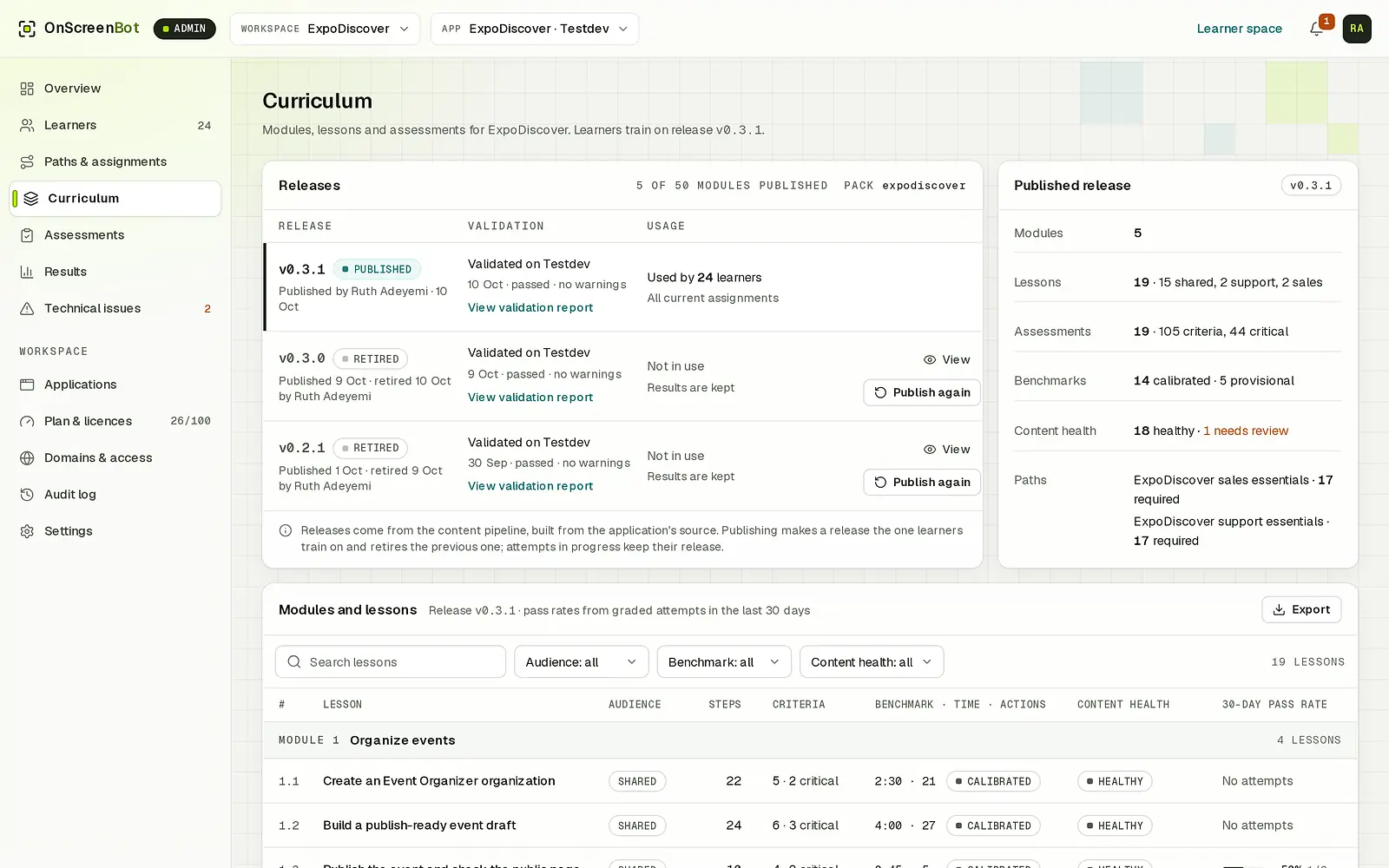
The Curriculum page: the published course release, earlier releases retired with their results kept, and the modules and lessons with their benchmarks and content health.
The Curriculum page of a demo workspace: each release with its validation, the release learners train on, and the lessons. Sample data.
Guided Mode · Enterprise

Answers guided by your course, pointed out on the page.

Guided Mode is an AI assistant in the side panel, powered by Kimi from Moonshot AI. Learners ask in their own words while they practise and get an answer grounded in the course they are taking.

Grounded in your course

It answers from the course’s knowledge articles and, during a lesson, the step the learner is on.

Points at the page

Answers name the controls they mean, and Show highlights one on the page. The learner still does the work.

Off in assessments

Guided Mode never answers during an assessment, so results show what people can do on their own.

An AI notice first

Before the first question, learners read that answers come from an AI model processed in Singapore, what is sent and that answers can be wrong.

Private to the learner

Within your workspace, only the learner sees their conversations. Staff see how many questions each topic gets, never names or text.

Enterprise, under your control

Guided Mode is included in the Enterprise plan, and admins can turn it off for the workspace.

More about Guided Mode

Guided ModeEnterprise

Where do I set who owns the record?

GuidedRoleKimi · 2 sources

Use the Owner field under the record name. The owner gets the follow-up tasks, so pick the person who handles the account, then choose Save draft.

On screen
  1. 1OwnerShowing
  2. 2Save draft
Sources
Record owners and teamsDrafts and publishing
Guided Mode topicsAggregate

34questions in 30 days

  • Create a customer record14
  • Create an invoice11
  • Owners9

Individual transcripts are not shown to administrators.

Sample data from a demo workspace.

Set-up

Set up without touching your application.

There is no code, script or plug-in to add to your application. You need a test site for practice, a course and the extension in Chrome.

  1. Create your workspace

    Sign up with your work email and a password, and enter the 6-digit code sent to you. Then name your workspace, and stay on the trial or request a paid plan. The trial is free for 14 days with 10 licences · 1 domain · 10 modules, without Guided Mode.

  2. Add your test site

    Under Applications, an admin enters the address of your application’s test site: an https origin with one exact host, plus a path prefix if the site needs one.

  3. Publish your course

    FasterApps builds the course from your application’s source code and imports it as a draft release. An admin publishes it in Curriculum.

  4. Bring your team in

    Verify your email domain with a DNS TXT record, and colleagues who sign up with an address at that domain join automatically and take a licence. Or invite people by email as an admin, trainer or learner, with an optional training role.

  5. Assign role paths

    A path holds the required and optional lessons for a training role, with a due date. It is assigned automatically to everyone who holds that role.

  6. Install the extension

    Each learner adds GuidedRole to Chrome 142 or later on a computer, allows it on the test site only and signs in with their GuidedRole account. Their test site login stays separate.

GuidedRole is in English. Plan changes are requested in Plan & licences and applied by the FasterApps team.

Domains & accessAction needed

Add this TXT record at the DNS provider for yourcompany.com, then check again.

Type
TXT
Name / host
_onscreenbot.yourcompany.com
Value
onscreenbot-verification=7f3a-92ce-081b

DNS changes can take up to 48 hours to appear. GuidedRole also checks every hour.

Once verified, colleagues who sign up with an @yourcompany.com address join the workspace and take a licence.

Applications · Customer portalTest site
Origin
https://test.yourapp.com
Path prefix
None (optional)
Course
v0.4.0 · published

One exact host. Learners allow the extension on this address only.

Roles

Who does what, role by role.

Every active member uses a licence, owners and admins included. Each person sees what their role needs, and nothing more.

  • Owner and admins

    Admin space

    • Set up applications, domains and settings.
    • Invite people, assign paths and set due dates.
    • Publish course releases and tune benchmarks.
    • Open step-by-step timelines, each opening recorded in the audit log.

    The owner also manages admin access and can erase the training data of a disabled member.

  • Trainers

    Admin space · trainer view

    • Follow learners and their progress.
    • See results and technical issues.
    • Close technical issues.
    • No changes to paths, releases or settings.
    • No step-by-step timelines.
  • Learners

    Side panel and learner space

    • Take lessons and assessments in the side panel.
    • See their own progress, results and activity.
    • View and export their own data.
    • Ask Guided Mode on the Enterprise plan.
  • FasterApps

    The team behind GuidedRole

    • Builds and updates your courses.
    • Applies the plan changes you request.
    • Helps with support. Support access is limited in time and recorded in your audit log.
Privacy

Training data, not surveillance.

GuidedRole records only what training needs: the lessons and assessments a learner runs, and the questions they ask Guided Mode.

Only during training

Recording runs only during a lesson or assessment the learner starts, with a visible indicator, and when they ask Guided Mode a question.

No page content leaves the browser

No keystrokes, field values, page text or screenshots. Only activity named in the course’s own words: the pages, the controls used, whether a field was filled, and timing.

People see their own data

Every learner can view and export their own data.

Reviews are on the record

Opening someone’s step-by-step timeline is logged. Only workspace owners and admins can do it, and FasterApps support only while acting as an admin, recorded under both names.

Start with one role and one application.

Try GuidedRole free for 14 days, or talk to us about a course for your application. FasterApps builds it from your application’s source code.

14-day free trial · No payment details · Works in Chrome